Step Three Preparing the Case for install
I prefer things to be small so for this step I am choosing the Apevia X-QPACK2 case. This thing is small enough to almost fit on a book shelf. And from my experience I haven't had any
issues with overheating with the 2 that I have.
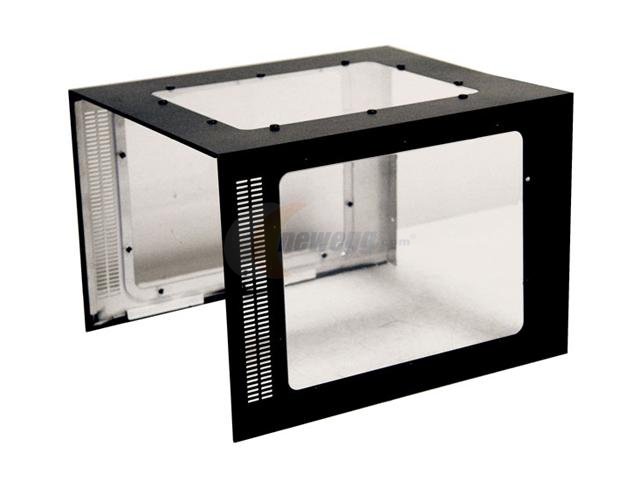 First thing is first, unbox the unit and place it
on a flat surface. On the back, you will find 3 finger screws holding the black case cover on, unscrew these screws and pull the case cover toward the back until the front of the
cover clear the slides that are holding it in. Now lift up on the cover and it should come right off. You may have to work with it a little but it will come off. On some cases the
side panel comes off (if looking from the rear its the right side panel). Remove the 2 screws holding it on and slide it back about an inch and pull it to the side away from case
to remove. Now that thats off turn it upside down and lay it on a flat surface.
First thing is first, unbox the unit and place it
on a flat surface. On the back, you will find 3 finger screws holding the black case cover on, unscrew these screws and pull the case cover toward the back until the front of the
cover clear the slides that are holding it in. Now lift up on the cover and it should come right off. You may have to work with it a little but it will come off. On some cases the
side panel comes off (if looking from the rear its the right side panel). Remove the 2 screws holding it on and slide it back about an inch and pull it to the side away from case
to remove. Now that thats off turn it upside down and lay it on a flat surface.
- Next pull all the contents from within the case and lay them inside the case cover. These content will contain:
- Spacers for lifting the motherboard.
- Screws for mounting motherboard.
- Manual
- Maybe some SATA cables, or Pata ribbons.
- If your tower came with a power supply installed, check all of the cables and make sure there are no cuts or bare wire showing. Its rare that you find one but it does happen. Check
the connectors for your front panel items.
- Power switch
- Reset switch
- Hard drive LED
- Power LED
- USB ports
- Audio components
- Any 1394 ports
- Any cooling fans installed from factory
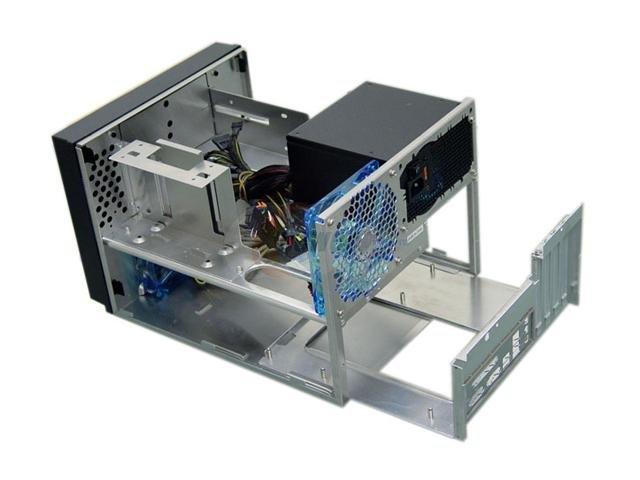 On this
particular case the panel that the mother board mounts to, can be removed. So now is when you should remove this panel. On this case it is removed by removing 2 more finger
screws from the rear panel, and slide the motherboard mounting panel out the rear of the case.
On this
particular case the panel that the mother board mounts to, can be removed. So now is when you should remove this panel. On this case it is removed by removing 2 more finger
screws from the rear panel, and slide the motherboard mounting panel out the rear of the case.
- At this point you should have a good clear view of the tower unit. From here you can install any cooling fans that you purchased from the store. And if your into looks then you can
install any LED lights that you purchased to spice up the look of your tower unit.
As of now I would have to say your case is prepared to move on to the next step.
 On this
particular case the panel that the mother board mounts to, can be removed. So now is when you should remove this panel. On this case it is removed by removing 2 more finger
screws from the rear panel, and slide the motherboard mounting panel out the rear of the case.
On this
particular case the panel that the mother board mounts to, can be removed. So now is when you should remove this panel. On this case it is removed by removing 2 more finger
screws from the rear panel, and slide the motherboard mounting panel out the rear of the case.