This step is very important. Make sure you have your anti-static gloves on. A couple of these items discussed here are sensitive to exposure. Make sure you read the manuals that come with your motherboard for exact procedures but here is what most I have seen say. Any notes you may see, are things I have learned from trial and error.
Installing Processor
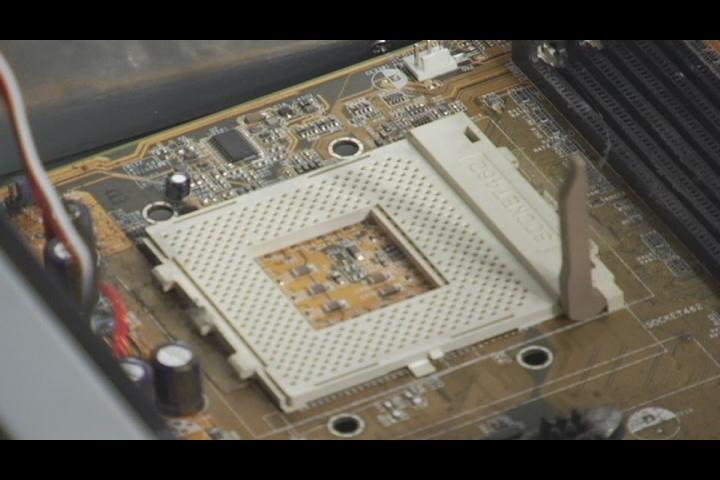 Locate the processor socket on the motherboard and open the processor slot by lifting the lever on the side of the slot to the open position. Locate the keyed portion of the
processor that is signified by a diagonal corner of the pin layout. Align the processor so that this corner matches up between the processor and the socket.
Locate the processor socket on the motherboard and open the processor slot by lifting the lever on the side of the slot to the open position. Locate the keyed portion of the
processor that is signified by a diagonal corner of the pin layout. Align the processor so that this corner matches up between the processor and the socket.With the processor aligned based on the key, make sure the pins are all lined up with the socket and gently lower the CPU into the socket so all the pins are in the proper holes. (Note: Do not force it) If the processor does not go into the socket easily, lift it up and reinspect that the pins are lined up correctly.
Lock the processor in place to the motherboard by lowering the lever on the side of the processor slot until it is in the locked position. If the processor or cooling solution came with a protection plate, align this over the processor as instructed with the product documentation.
Installing Heatsink
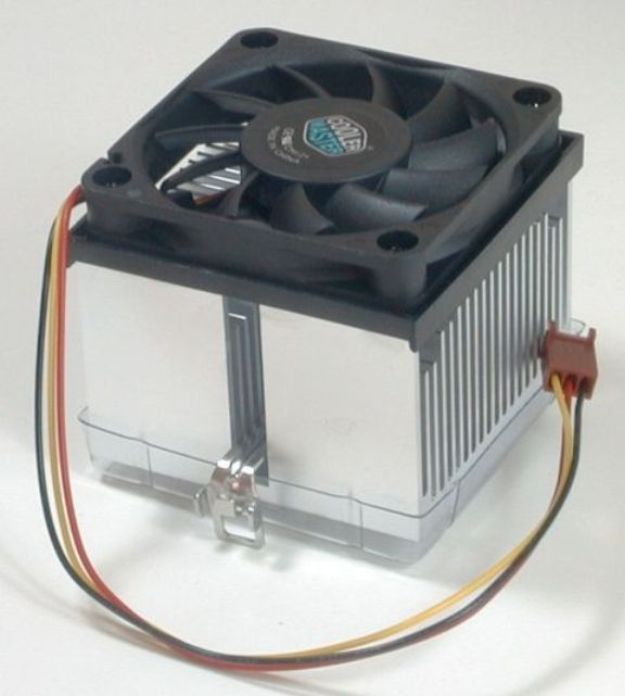 The first thing to do is to determine if
your heatsink comes with the thermal compound pre-applied. Check the installation manual that came in the box if you have one. Look at the bottom of the heat sink. If there is a
piece of film or tape it should have writing telling you that thermal compound is present. If yours does not say this then you will have to assume it does not have thermal compound
pre-applied.
The first thing to do is to determine if
your heatsink comes with the thermal compound pre-applied. Check the installation manual that came in the box if you have one. Look at the bottom of the heat sink. If there is a
piece of film or tape it should have writing telling you that thermal compound is present. If yours does not say this then you will have to assume it does not have thermal compound
pre-applied. If your heat sink does not have thermal compound pre-applied, remove any film or tape on the bottom of the heat sink. If the bottom is not perfectly clean and smooth just gently wipe it with a lint-free cloth. Now open the small tube of thermal paste and apply a small amount to the raised center surface of the CPU chip. Spread it evenly by very gently using the edge of an old credit card or stiff piece of paper. Only a very thin layer is needed.
If your heatsink has a stepped edge along one side make sure that edge is facing the raised section of the CPU Socket Connector. Place the heat sink on top of the processor chip so it makes even contact all around - do not tilt it. Do not push on the heat sink or apply pressure that could damage the CPU chip. Once it is properly positioned you can attach the clip on one side to the plastic tab of the socket connector.
Now you can confirm the clip on the other side is aligned with the plastic tab. Use a flathead screwdriver to move the clip down (and slightly out so it slides over the tab) and attach it to the plastic tab. Do not apply pressure to the heat sink itself, only apply pressure to the clip. This step can be a little tricky so be patient and don't rush it. Be particularly careful to make sure the screwdriver doesn't slip off the clip and scratch or gouge the motherboard.
Once you get both clips securely attached check to make sure the heatsink is level and evenly in contact with the processor chip all the way around. Make sure it is not ajar or caught on the raised portion of the socket connector.
Now you can connect the fan's power cable to the corresponding jack on the motherboard, most of the time labeled as CPU Fan. Now your cooling fan is completely installed.
Installing RAM
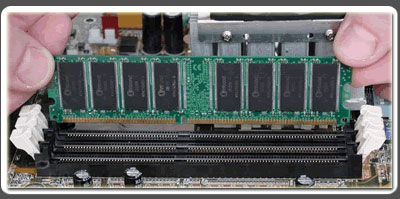 Installing RAM is one of the easiest installation tasks, yet it is also one of the most frequent errors amatuers make. To install RAM, simply line up the copper plated connector shapes
with the copper receptors in the motherboard RAM slots and push it down into the receptor. There will always be at least one notch in the copper plated shapes and that notch is what
you line up with division in the slot. A good tip for this is to make certain you don't push so hard that you crack the motherboard. A steady pressure with a slight back and forth
wiggle (sort of like pulling up tight pants) will allow the RAM to slip into the slot smoothly without harming the motherboard.
Installing RAM is one of the easiest installation tasks, yet it is also one of the most frequent errors amatuers make. To install RAM, simply line up the copper plated connector shapes
with the copper receptors in the motherboard RAM slots and push it down into the receptor. There will always be at least one notch in the copper plated shapes and that notch is what
you line up with division in the slot. A good tip for this is to make certain you don't push so hard that you crack the motherboard. A steady pressure with a slight back and forth
wiggle (sort of like pulling up tight pants) will allow the RAM to slip into the slot smoothly without harming the motherboard. The slots are generally filled in priority order, from the closest to the CPU outward. These slots are referred to as "banks". The motherboard manual or website, will generally show you exactly which bank is which, but most advanced motherboard require that bank 0 (usually closest to the CPU) is filled first and the rest are filled in order from there.
When the RAM is completely connected with the slot you will feel a little "click". That click means the thumb locks on the sides of the slide have secured the RAM into place. If you want to remove the RAM in the future (or remove RAM in order to install new RAM) just press down on the thumb locks (located on each side of the slot) and they will pop the RAM out of the slot like a toaster popping up toast.
Installing Expansion Cards
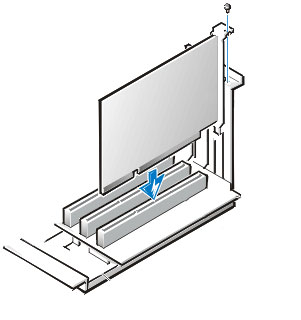 Locate the appropriate slot for your your expansion card. In most cases the top one is AGP or PCIEx. These are for hi performance video graphic cards. And the rest of the slots on
a board are usually PCI (short white). These are for holding some video graphic cards, modems, ethernet cards, USB expansion cards, wireless network adapters, and more. Sometimes
the bottom one or two slots are ISA (long black). Not around as often now as they used to be.
Locate the appropriate slot for your your expansion card. In most cases the top one is AGP or PCIEx. These are for hi performance video graphic cards. And the rest of the slots on
a board are usually PCI (short white). These are for holding some video graphic cards, modems, ethernet cards, USB expansion cards, wireless network adapters, and more. Sometimes
the bottom one or two slots are ISA (long black). Not around as often now as they used to be. To install a new expansion card into a pci slot. Place the card over the pci slot you wish to install it in. See what blanking plate you have to remove. Set card aside and remove the blanking plate. Place the expansion card into the grooves of the PCI slot and apply pressure. A little wiggle side by side may help with the installation. Press the expansion card into the PCI slot til it stops.
When you have the expansion card fully pressed into the PCI slot you should see the metal brace is fully against the card guide. Secure the expansion card with a retaining screw which should have came with the case. All expansion cards install this same way. There may be some variance with installing graphic cards but make sure to read owner manual for proper installation procedures if you have any questions.